Custom built courses from £1 — powered by your own AI tutor
Imagine having a personal programming tutor who knows your current coding skills, target skills and preferred learning pace. Such a tutor could tailor a course to you, teaching you exactly what you need to learn in manageable bitesize lessons.
Welcome to Skillpatch.ai — which uses AI to create you custom-made courses on the coding skills you want to learn next. And they start from just £1.
Your Learning Journey in 5 steps

Set current skills
Set current skills manually

Set your goal
Set target skills manually

Choose pace
Choose up to 5 skill levels
More levels = faster pace

Generate courses
One course at a time for now

Learn & track
Tick off each lesson
How do I use Skillpatch?
Full video - how to generate a course on Python
Short explainer videos
Click-through: How to generate a course on Python
How do I start coding?
What is a text editor?
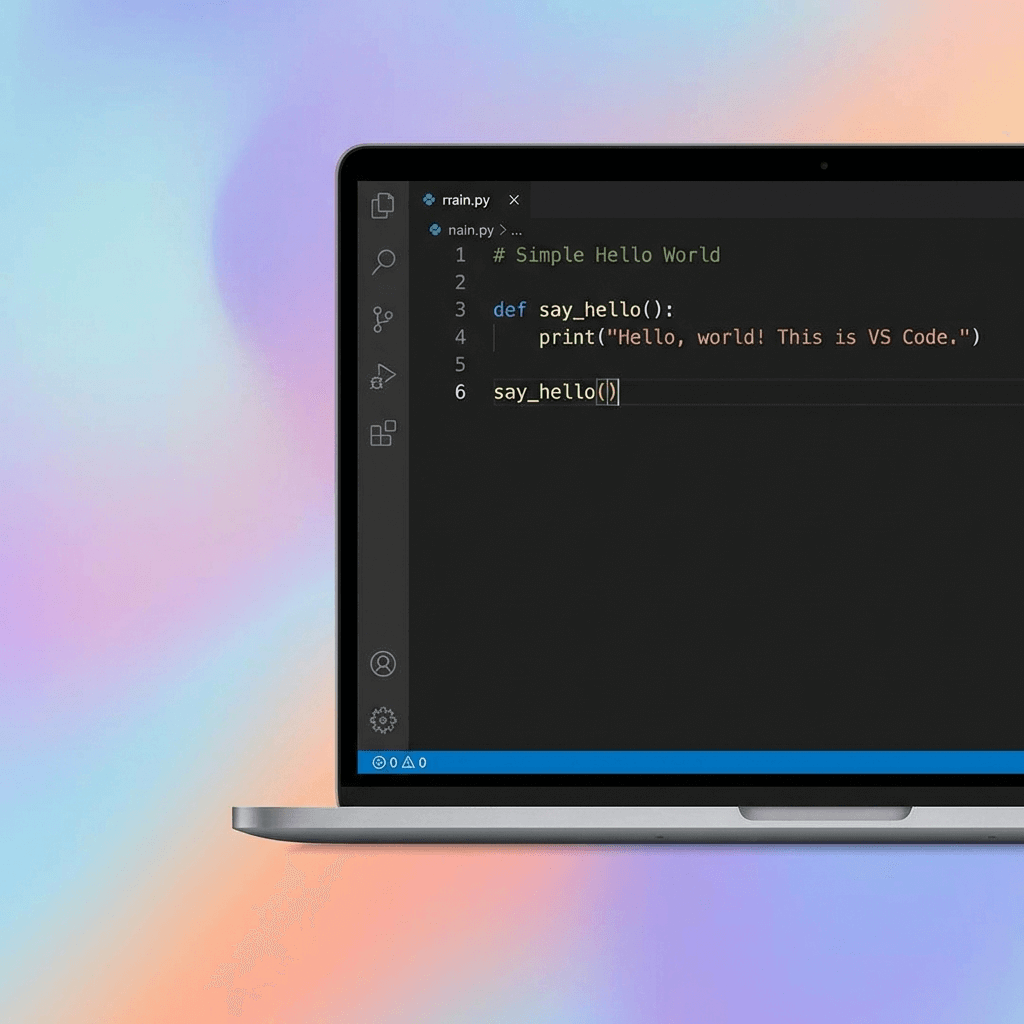
A text editor is software on your computer that lets you create and edit plain text files. Unlike a word processor, it doesn’t focus on fonts, bold, italics, or page layout. Instead, it shows you the raw characters you type, exactly as they are.
When you learn to code, you write your instructions as text into a text editor. Different languages have different rules about what you can write. You save them as files like .py, .js, or .html, and then another program (like Python or your web browser) runs them.
Good text editors also make coding easier by adding helpful features. They can colour your code so you can see keywords and mistakes more clearly, suggest completions as you type, and show line numbers so you can find errors quickly.
In short, a text editor is software for writing and saving your programming code. You might hear the software referred to as an IDE (Integrated Development Environment) - that's the same thing.
How do I install a text editor?
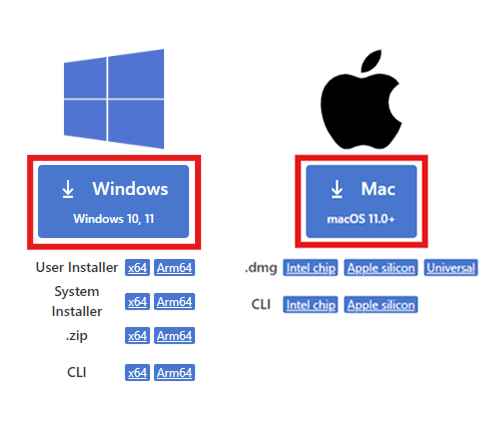
Many text editor softwares are available. We use VS Code, which is free and works on Windows or Macs or via the browser.
Coding is easiest on a computer. If you're using a mobile phone, skip to the last paragraph. If you're using a laptop, work out whether it's a Mac or a PC. If it has an apple symbol, it's a Mac. Click this link and click either of the two buttons highlighted with a red rectangle: https://code.visualstudio.com/download
When you click the button, it will open an installer which will unpack all the files onto your computer. If the installer asks you about extra options, the default choices are fine - just keep clicking Next until it finishes.
If you don't want to download anything, or if you're on a smartphone or tablet, you can use a basic version of VS Code in the browser at https://vscode.dev/. This should be fine for starting out. More information on this web version here.
How do I use my text editor?
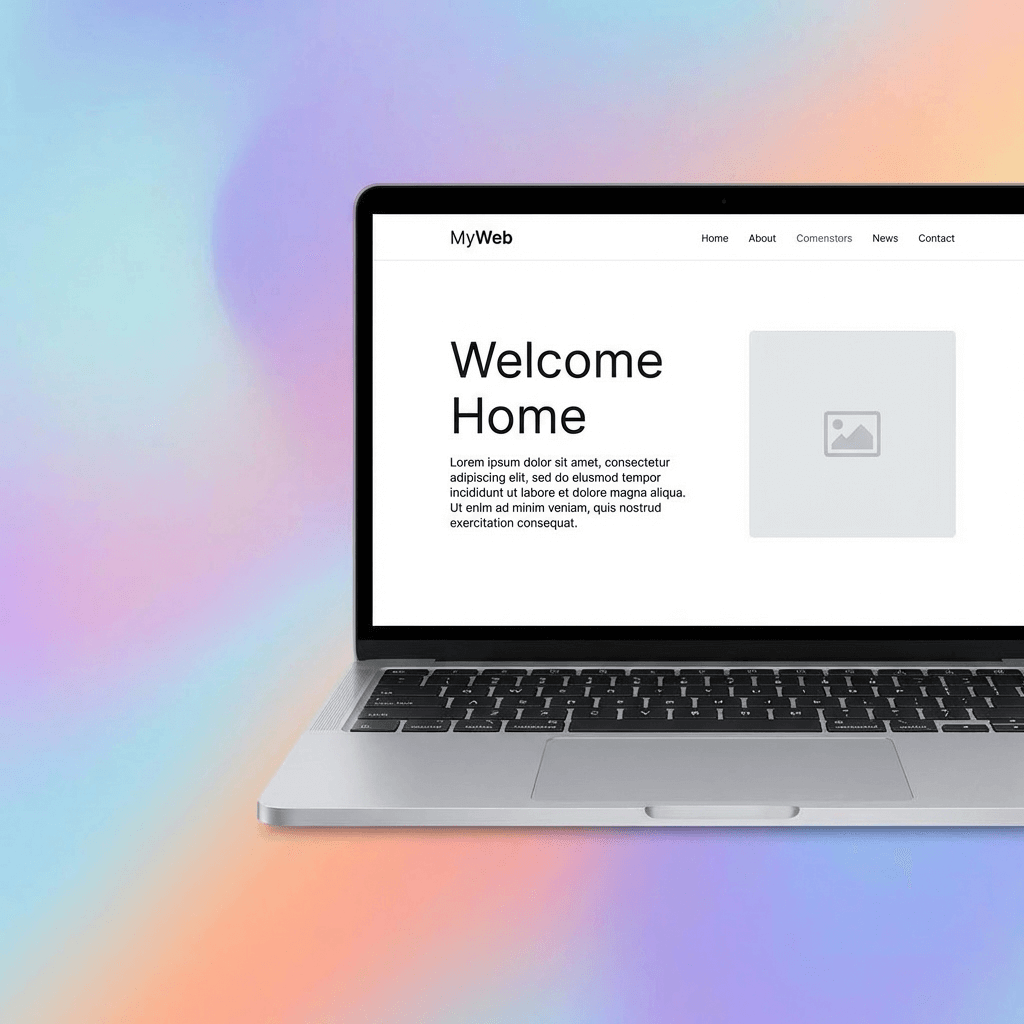
To use a text editor for coding, create a new blank file and save it with the correct extension for your language. For example, you might use .py for Python, .js for JavaScript, or .html for web pages. Skillpatch code examples should make it clear which extension to use.
Once the file is saved with the right extension, the text editor knows which rules to apply to the code you write. So it can highlight any mistakes, and recognise different parts of the code. Type or copy the code Skillpatch provides into the text editor and save.
When you want to run your code, you save the file, then use whatever tool is appropriate for that language: this might be a command in a terminal, a “Run” button in your editor, or a browser refresh if you are working with web pages. The important habit is always: type in the editor, save your changes, then run the code using the correct tool for your language.
Skillpatch will give you increasingly complex code examples to work through and, if you have generated a beginner course, your Skillpatch course should instruct you how to run the code for your chosen language.